JMX
JMX
Apache ActiveMQ has extensive support for JMX to allow you to monitor and control the behavior of the broker via the JMX MBeans.
Using JMX to monitor Apache ActiveMQ
You can enable/disable JMX support as follows…
-
Run a broker setting the broker property useJmx to true (enabled by default) i.e.
For xbean configuration
<broker useJmx="true" brokerName="BROKER1"> ... </broker> - Run a JMX console
$ jconsole - The ActiveMQ broker should appear in the list of local connections, if you are running JConsole on the same host as ActiveMQ.
JMX remote access
Remote connections to JMX are not enabled by default in the activemq.xml for security reasons. Please refer to Java Management guide to configure the broker for remote management.
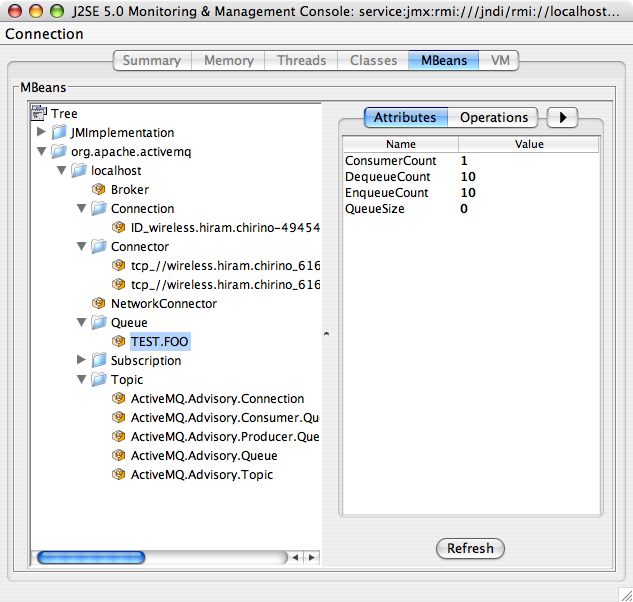
Using the Apache ActiveMQ version on OS X it appears as follows:
ActiveMQ MBeans Reference
For additional references provided below is a brief hierarchy of the mbeans and a listing of the properties, attributes, and operations of each mbeans.
| Mbean Type | Properties / ObjectName | Attributes | Operations |
|---|---|---|---|
| Broker | type=Broker, brokerName=<broker-identifier> | BrokerId, TotalEnqueueCount, TotalDequeueCount, TotalConsumerCount, TotalMessageCount, TotalConnectionsCount, TotalConsumerCount, TotalProducerCount, MemoryLimit, MemoryPercentUsage, StoreLimit, StorePercentUsage | start, stop, terminateJVM, resetStatistics, gc |
| Destination | type=Broker, brokerName=<name-of-broker>, destinationType=Queue|Topic, destinationName=<name> | Average, EnqueueTime, ConsumerCount, DequeueCount, EnqueueCount, ExpiredCount, InFlightCount, MemoryLimit, MemoryPercentUsage, Name, QueueSize (queues only) | browseMessages, gc, purge, resetStatistics |
| NetworkConnector | type=Broker, brokerName==<name-of-broker>, connector=networkConnectors, networkConnectorName==<connector-identifier> | Name, Duplex, DynamicOnly, BridgeTempDestinations, ConduitSubscriptions, DecreaseNetworkConsumerPriority, DispatchAsync, DynamicOnly, NetworkTTL, Password, PrefetchSize | start, stop |
| Connector | type=Broker, brokerName=<name-of-broker>, connector=clientConnectors, ConnectorName==<connector-identifier> | StatisticsEnabled | start, stop, resetStatistics, enableStatistics, disableStatistics, connectionCount |
| Connection | type=Broker, brokerName=<name-of-broker>, connectionViewType=clientId, connectionName==<connection-identifier> | DispatchQueueSize, Active, Blocked, Connected, Slow, Consumers, Producers, RemoteAddress, UserName, ClientId | start, stop, resetStatistics |
| PersistenceAdapter | type=Broker, brokerName=<name-of-broker>, Service=PersistenceAdapter, InstanceName==<adapter-identifier> | Name, Size, Data, Transactions | |
| Health | type=Broker, brokerName=<name-of-broker>, Service=Health | CurrentStatus | health |
Command line utilities are also available to let you monitor ActiveMQ. Refer to ActiveMQ Command Line Tools Reference for usage information.
JMX API is also exposed via REST management API
Password Protecting the JMX Connector
(For Java 1.5+)
- Make sure JMX is enabled, but tell ActiveMQ not create its own connector so that it will use the default JVM JMX connector.
<broker xmlns="http://activemq.org/config/1.0" brokerName="localhost"useJmx="true"> ... <managementContext> <managementContext createConnector="false"/> </managementContext> ... </broker> -
Create access and password files
conf/jmx.access:
 # The "monitorRole" role has readonly access.
 # The "controlRole" role has readwrite access.
 monitorRole readonly
 controlRole readwrite
conf/jmx.password:
 # The "monitorRole" role has password "abc123".
 # The "controlRole" role has password "abcd1234".
 monitorRole abc123
 controlRole abcd1234
(Make sure both files are not world readable - more info can be find here to protect files)
For more details you can see the Monitoring Tomcat Document
-
Modify the “activemq” startup script (in bin) to enable the Java 1.5+ JMX connector
Find the “ACTIVEMQ_SUNJMX_START=” line and change it to the following: (note that in previous versions of ActiveMQ this property was called SUNJMX in some scripts. As of v5.12.0 all scripts use ACTIVEMQ_SUNJMX_START):
- Windows
ACTIVEMQ_SUNJMX_START=-Dcom.sun.management.jmxremote.port=1616 -Dcom.sun.management.jmxremote.ssl=false \ -Dcom.sun.management.jmxremote.password.file=%ACTIVEMQ_BASE%/conf/jmx.password \ -Dcom.sun.management.jmxremote.access.file=%ACTIVEMQ_BASE%/conf/jmx.access - Unix
   ACTIVEMQ_SUNJMX_START="-Dcom.sun.management.jmxremote.port=1616 -Dcom.sun.management.jmxremote.ssl=false \
 -Dcom.sun.management.jmxremote.password.file=${ACTIVEMQ_BASE}/conf/jmx.password \
 -Dcom.sun.management.jmxremote.access.file=${ACTIVEMQ_BASE}/conf/jmx.access"
This could be set in /etc/activemq.conf instead (if you have root access):
- Windows
ACTIVEMQ_HOME=DRIVE_LETTER:/where/ActiveMQ/is/installed ACTIVEMQ_BASE=%ACTIVEMQ_HOME% ACTIVEMQ_SUNJMX_START=-Dcom.sun.management.jmxremote.port=1616 -Dcom.sun.management.jmxremote.ssl=false \ -Dcom.sun.management.jmxremote.password.file=%ACTIVEMQ_BASE%/conf/jmx.password \ -Dcom.sun.management.jmxremote.access.file=%ACTIVEMQ_BASE%/conf/jmx.access - Unix
   ACTIVEMQ_HOME=DRIVE_LETTER:/where/ActiveMQ/is/installed
   ACTIVEMQ_BASE=${ACTIVEMQ_HOME}
   ACTIVEMQ_SUNJMX_START="-Dcom.sun.management.jmxremote.port=1616 -Dcom.sun.management.jmxremote.ssl=false \
   -Dcom.sun.management.jmxremote.password.file=${ACTIVEMQ_BASE}/conf/jmx.password \
   -Dcom.sun.management.jmxremote.access.file=${ACTIVEMQ_BASE}/conf/jmx.access"
- Windows
- Start ActiveMQ
You should be able to connect to JMX on the JMX URL
service:jmx:rmi:///jndi/rmi://<your hostname>:1616/jmxrmi
And you will be forced to login.
Selective MBean registration
In situations where you need to scale your broker to large number of connections, destinations and consumers it can become very expensive to keep JMX MBeans for all those objects. Instead of turning off JMX completely, starting with 5.12.0, you can selectively suppress registration of some types of MBeans and thus help your broker scale, while still having a basic view of the broker state.
For example, the following configuration will exclude all dynamic producers, consumers, connections and advisory topics from registering their MBeans
<managementContext>
  <managementContext suppressMBean="endpoint=dynamicProducer,endpoint=Consumer,connectionName=*,destinationName=ActiveMQ.Advisory.*"/>
</managementContext>
ManagementContext Properties Reference
| Property Name | Default Value | Description |
| useMBeanServer | true | If true then it avoids creating a new MBean server if a MBeanServer has already been created in the JVM |
| jmxDomainName | org.apache.activemq | The jmx domain that all objects names will use |
| createMBeanServer | true | If we should create the MBeanServer is none is found. |
| createConnector | false | Please refer to Java Management guide to configure the server for remote management and lock down the endpoint serialisation with an appropriate jdk.serialFilter Note: if set to true: * lock down the endpoint serialisation with an appropriate jdk.serialFilter * configure rmiServerPort and connectorHost to lock down the RMI server interface binding |
| connectorPort | 1099 | The port that the JMX connector will use |
| connectorHost | localhost | The host that the JMX connector and RMI server (if rmiServerPort>0) will use |
| rmiServerPort | 0 | The RMI server port, handy if port usage needs to be restricted behind a firewall |
| connectorPath | /jmxrmi | The path that JMX connector will be registered under |
| findTigerMBeanServer | true | Enables/disables the searching for the Java 5 platform MBeanServer |
| suppressMBean | List of MBean name patters to ignore |